
How to Change a Squarespace Template (7.0 to 7.1 and Beyond)
If you built your brand on Squarespace 7.0, you’re likely starting to feel the limits — especially with newer designs running on 7.1 and Fluid Engine. Upgrading or switching templates is one of the fastest ways to modernize your site without rebuilding your entire brand from scratch.
This guide walks you through how to change a Squarespace template, move your content, and customize your new design so it still feels like your brand. Whether you’re moving from 7.0 to 7.1 or switching to one of my premium Squarespace website templates the process follows the same basic steps.
How to Change Template on Squarespace in 5 Steps
To change your template, you’ll move your content into a fresh 7.1 site, update your settings, and then connect your domain when you’re ready to launch.
1. Start fresh with a new 7.1 site or template
The cleanest way to “change” your template on Squarespace is to start with a new 7.1 site. You can either:
Start a new trial directly from Squarespace’s template gallery, or
Install a premium Squarespace template, which are usually built on 7.1 and ready to customize.
Either way, you’re starting with a modern, flexible base that takes advantage of current features like Fluid Engine, improved layouts, and updated styling controls.
2. Move your content into the new site
Once your new 7.1 site is set up, it’s time to move content over from your existing site.
Most people do this in two ways:
Manual copy/paste for key pages like Home, About, Services, and Contact
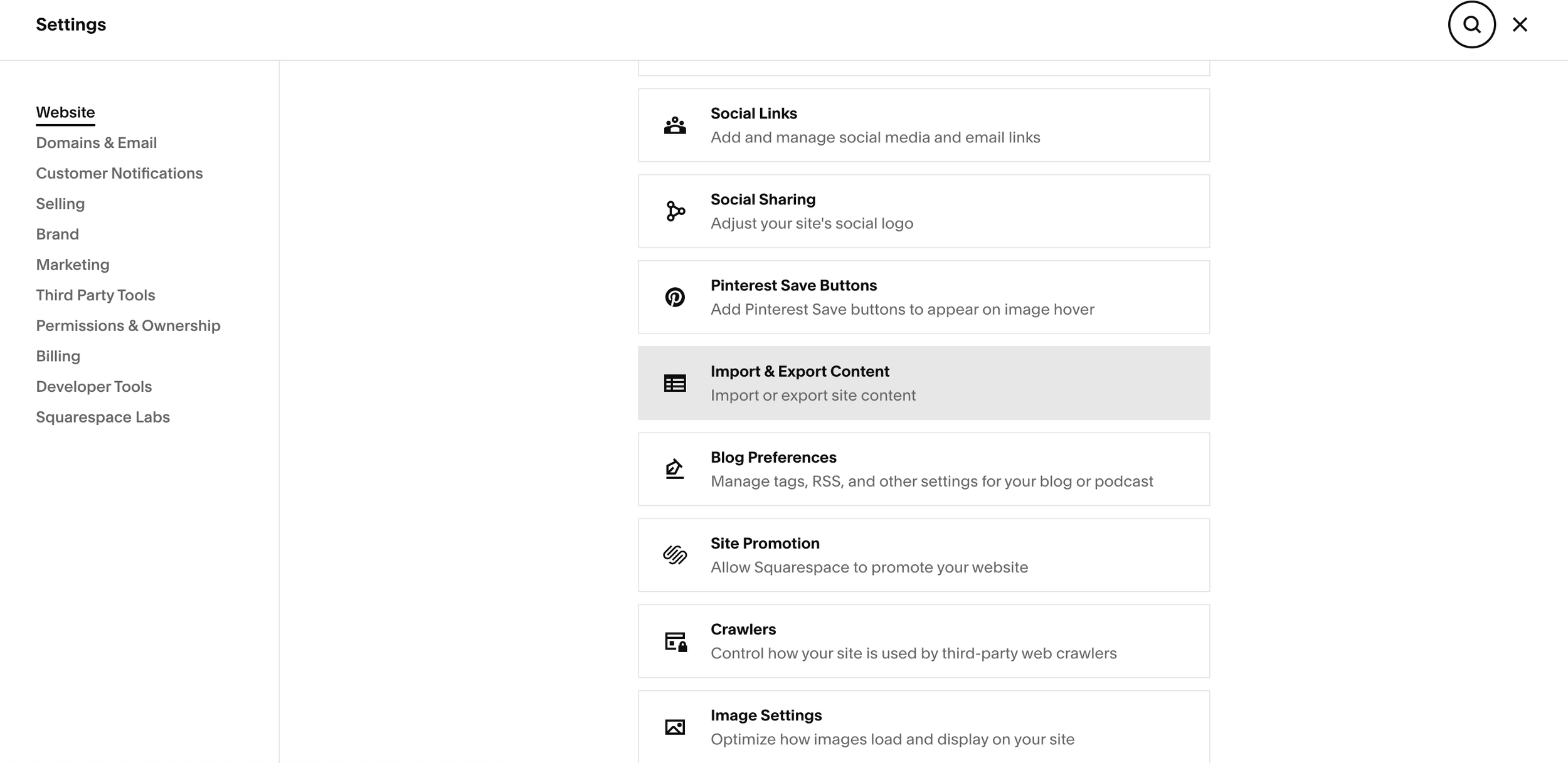
Imports for larger blogs or archives using the built-in “Import & Export Content” tools
If you use the import tool, your pages typically land in the Not Linked section first. From there, you can clean them up, map them to your new navigation, and update layouts so they actually match the new design instead of dragging old structure into a modern template.
Take this as an opportunity to tighten copy, remove outdated content, and bring your site up to 2026 standards rather than cloning every old page.
3. Copy over settings, integrations, and code
Next, move the “invisible” pieces that make your site work:
Any custom CSS
Header and footer code injections
API keys and integrations (email marketing, analytics, booking tools, etc.)
Third-party services and extensions
Open your existing site in one tab and your new site in another, then copy settings over section by section. This is also a good moment to decide what no longer serves you and can be left behind.
4. Update your domain and Google Workspace
Once your new 7.1 site is ready to go live:
Point your custom domain to the new site (either by updating DNS records or switching the assigned site in Squarespace).
Confirm that any connected email, such as Google Workspace, is still routing correctly.
After everything is connected and tested, you can upgrade your new trial site to a paid plan and retire the old version.
5. Customize your new 7.1 template so it feels like your brand
This is where the transformation actually happens.
Squarespace 7.1 templates — especially high-end options are built to be flexible. Use the design tools to:
Refine your color palette so it matches your existing brand
Choose typography that feels aligned with your personality and market
Restructure key pages (like your homepage and services) for clarity and conversions
If you want a deeper dive into aligning fonts with your visual identity, you can read my guide on choosing the best Squarespace fonts and pairings.
Customizing Your New Site for a Successful User Experience, Not Just Aesthetics
Once the basics are in place, focus on how the new template supports the user experience, not just how it looks.
Ask yourself:
Does the homepage clearly communicate what you do and who it’s for?
Are your calls-to-action obvious and consistent?
Does the layout feel easy to scan on mobile?
While you’re making the shift to 7.1, it’s worth reviewing how your homepage is functioning within the new structure.
If you’re reassessing the site more broadly, this overview of the key website requirements for 2026 can help you ensure your upgrade aligns with best practices for performance and user experience.
Changing templates not solving your website problems?
Sometimes the issue isn't the template—it's the strategy. If you're constantly tweaking but not seeing results, it might be time for a custom Squarespace design built around your goals. Let's talk about what a strategic redesign could do for your business.

When to DIY and When to Bring in a Designer
You can change a Squarespace template on your own, especially if you’re comfortable inside the platform and your site isn’t too complex. But there are times when bringing in a professional saves a lot of time and protects your brand:
You’re running a multi-page site with a lot of content and integrations
You’re rethinking your offer structure at the same time as you redesign
You want your site to feel elevated and custom rather than “template-based”
Frequently Asked Questions
-
Squarespace 7.1 uses a unified template system, which means every design starts with the same flexible base. Instead of switching templates, you customize sections, layouts, and styles to achieve the look you want.
-
Yes. Version 7.1 is built for customization. You can adjust typography, colors, sections, layouts, and spacing without switching templates. With Fluid Engine, you have far more control over design than in 7.0.
-
The upgrade itself doesn’t hurt SEO, but removing pages, changing URLs, or forgetting redirects can. If your content structure stays intact, your rankings should remain stable — and often improve with stronger UX, mobile layout, and site performance.
-
Most sites require a fresh build in 7.1 since templates can’t be swapped directly. However, this gives you an opportunity to refine structure, improve navigation, update your visuals, and apply a more strategic homepage layout.
-
Squarespace 7.1 offers more flexible design controls, better mobile responsiveness, a longer lifespan for future updates, and a consistent editing experience across templates. If you want a site that grows with your brand, 7.1 is the stronger foundation.
-
You can evaluate it using strategic homepage principles. Consider clarity, hierarchy, mobile flow, CTA placement, and trust signals. These elements matter more than the template itself.
When DIY Isn't Enough: Custom Squarespace Design
Changing your template can give your site a fresh look. But if you're ready to move beyond templates and build a truly strategic website—one that converts visitors into clients—we can help.
We design custom Squarespace websites for mission-driven brands who want more than just "pretty."
